If your motorized blind has stopped working, do not factory-reset it yet. Keep the system unchanged long enough to compare what still works. One careful pass through the local control, handheld remote and app can separate a power problem from a control-path problem—and both from a shade that moves but needs product-specific service.
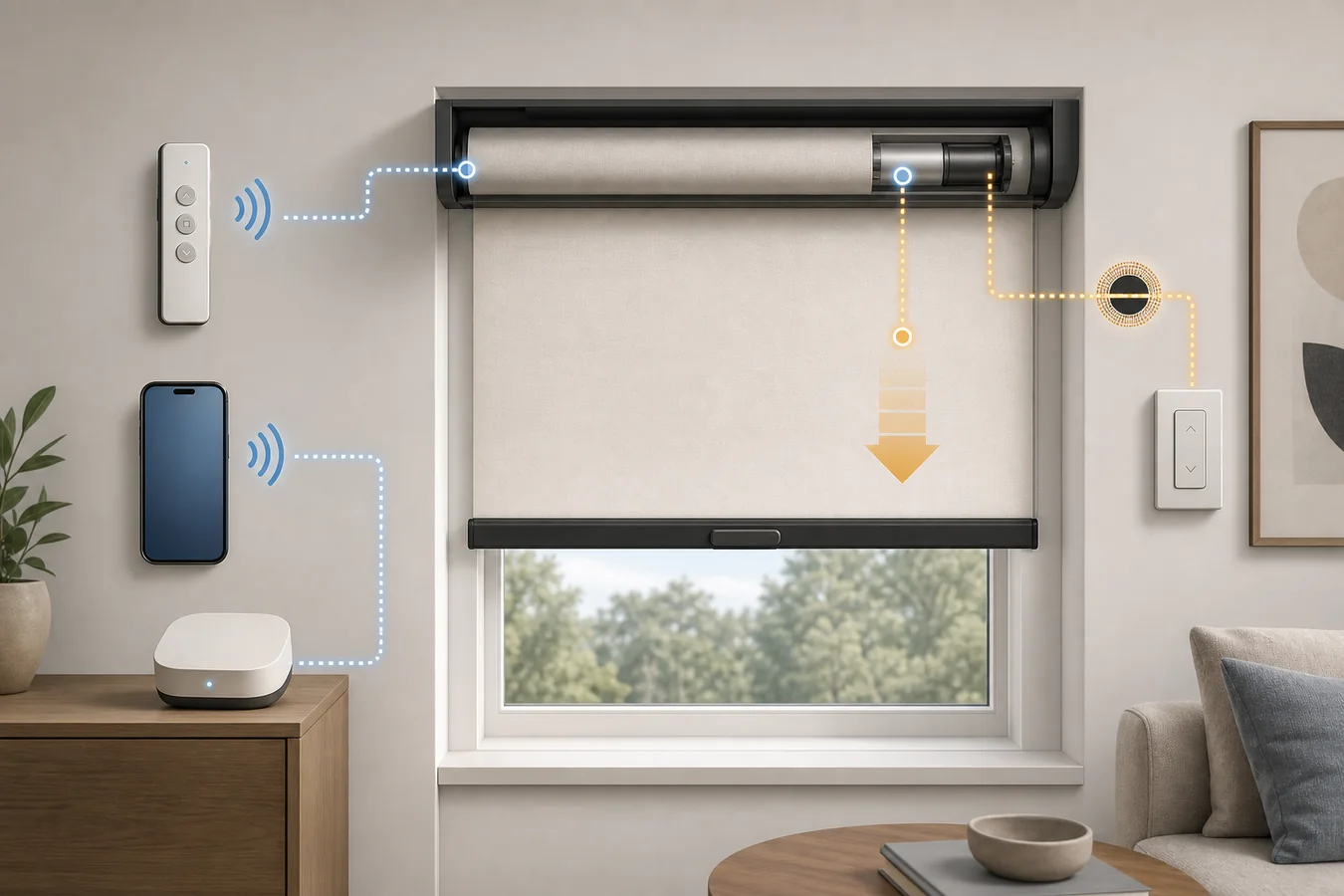
In the first minute, record five things: whether one shade, one group or every shade is affected; the exact shade and control generation; the power source; which controls respond; and whether the motor is silent, audible or moving abnormally. Those observations are more useful than a sequence of unrecorded resets.
Freeze the failure, then run one command
Use the same simple open or close command on the same shade. Do not re-pair, recalibrate or change groups between tests. A changed setup makes the results harder to compare.
Before pressing anything, photograph the product, motor or order label you can reach without removing covers. Include the remote model, app/system name and any installer invoice. “Motorized roller shade” is a category; the support document may depend on the motor, power pack, remote and system generation selected inside it.
| What you observe | What it suggests—not proves | Next useful branch | Do not do yet |
|---|---|---|---|
| One shade fails; its neighbors still respond to the same command | The shared remote, app or hub may still be able to send commands. | Check that shade’s exact power, assignment and visible movement. | Reset the whole room or hub. |
| A group or every shade fails together | A shared controller, hub, network or upstream power path deserves attention. | Test one shade with an exact documented local control, then a known paired remote. | Assume every motor failed. |
| The documented local control moves the shade, but the remote does not | The motor and shade can complete that motion; the handheld path is narrower. | Check remote response, selected channel/group and exact pairing guide. | Change travel limits. |
| The remote moves the shade, but the app does not | The failure is above the shade’s working handheld path. | Check the named app, hub/gateway, home/room assignment and generation-specific support. | Reset the motor. |
| The app moves the shade, but the remote does not | The remote’s power, channel, group or assignment is the narrower branch. | Use the exact remote guide. | Delete the working app setup. |
| No documented control works and the motor is silent | Power or an unidentified control path remains plausible. | Match the power architecture and manufacturer’s first power test. | Open wiring, force the shade or declare a dead motor. |
| The motor is audible but the covering does not move | The command reached the motor, but the movement path did not complete. | Stop and use the maker/installer service branch. | Pull the rail or cycle it repeatedly. |
| The shade moves but stops short, runs crooked or the fabric walks sideways | This is a travel or mechanical symptom, not merely “not responding.” | Choose the exact limit, alignment or service section for that model. | Apply a reset written for another product. |
A result narrows the next document; it does not identify a failed part with certainty. For example, one dead shade in a working group can still have a local power problem, lost assignment or mechanical fault. The value of the table is that it prevents a house-wide reset from becoming the first experiment.
Let the controls disagree
The best diagnostic result is often a mismatch. A working control path proves more than a non-working one.
Some systems expose a local button on the headrail or motor. Use it only if the manual for the exact shade identifies it and states the test. Hunter Douglas, for example, uses a headrail programming button to test basic operation in its current Legacy PowerView troubleshooting. The same support page is explicitly limited to Legacy PowerView before Fall 2022; the manufacturer maintains a separate PowerView Gen 3 path for the later generation. A button action from one is not evidence for the other.
If the handheld remote moves the shade while the app does not, leave the working remote and shade programming alone. Hunter Douglas documents a Legacy PowerView case where remote and app control can split because a shade must be paired to each path. That does not make separate pairing a universal architecture, but it shows why “the app failed” should not be converted into “the motor failed.”
Reverse the logic when the app works and the remote does not. Record whether the remote shows any response, which channel or group is selected, and whether another shade responds. Then open the exact remote guide. A fresh battery may be the right first action for a named remote; a guessed pairing or reset sequence is not.
For a buying-time map of hubs, protocols and control layers, use the smart blinds compatibility guide. Here, the job is narrower: preserve the control path that still works and repair only the path that does not.
Match the power check to the installed architecture
“Check the battery” is incomplete advice. The handheld remote may have one battery, the shade may use replaceable cells, a rechargeable pack, a plug-in supply or an installed low-voltage system, and the hub may have its own power.
Somfy’s named troubleshooting FAQ begins by observing the remote LED, then gives battery-wand checks for its battery-powered products. For wired plug-in or in-wall motors, it directs the owner to the retail dealer or installer. That boundary matters: a category article should not turn “check power” into electrical work.
Record the power arrangement instead of merely writing “battery.” Note the remote, motor or shade pack, charger/transformer and hub separately. If a charger, connector or battery compartment is not identified in the manual as user-accessible, stop at the label and support record.
The motorized-shade power guide can help name the architecture. Return to the exact owner’s manual for battery type, indicator meaning, access method and charging procedure.
Read motion as a different kind of evidence
Once the motor makes sound or the covering moves, “not working” is too vague. Write the motion as seen:
- silent, with no visible response;
- audible motor, no covering movement;
- starts, then stops at the same point;
- travels less than its former range;
- bottom rail becomes crooked;
- roller fabric shifts sideways on the tube;
- moves normally from one control but not another.
Do not combine these into a generic reset branch. Hunter Douglas separates incomplete travel, crooked movement and an audible motor with no product movement in the Legacy PowerView guide. For the last symptom it sends the case to the installer or dealer; crooked movement also receives its own route.
Lutron’s current Caséta Smart Roller Shade installation and troubleshooting PDF likewise separates low-power indications, remote response and telescoping fabric, pointing the last symptom to a product-specific application note. The useful category-level lesson is not the brand’s button sequence. It is that a moving shade has already supplied a more precise symptom, and that symptom should select the next manual section.
Clear only an obvious loose object that can be removed without touching the fabric path or hardware. Stop for a new grinding or snapping sound, a hot or damaged power component, a rail moving out of level, a tube shifting in its brackets, exposed internal cord or wire, or a motor that runs while the shade stays still.
Reset is a configuration change
A factory reset is not a neutral “try again” button. Depending on the system, it may remove assignments, pairing, limits, favorite positions or other setup. Exact effects and recovery steps belong to the exact product manual.
Before any documented reset, preserve:
- label and order photos;
- shade position and current upper/lower stopping points;
- the remote channel and group that still work;
- app home, room and shade assignment;
- indicator color or pattern exactly as observed;
- the commands already tried and their results.
Then read the reset section through the point where pairing and limits are restored. If you do not have the correct manual, cannot reach the stated control safely, or would lose the only working control path, stop and contact support.
Reset also does not answer whether the covering can be moved by hand. That separate question depends on a documented manual override or touch feature; the manual fallback guide for motorized blinds handles it without treating hand force as a diagnostic.
If the installed product has no remote, app, charger, motor sound or motor label, confirm that it is actually motorized. A stuck product sold merely as “cordless” belongs in the cordless blind mechanism guide, where roller, cellular and horizontal systems are separated before an operating check.
Hand support a useful case, not “it’s broken”
Give the manufacturer, dealer or installer one compact record:
one shade of four — exact product/motor/control generation — battery pack or wired supply — local control: no response — remote channel 2: works on other three shades — app: target shade offline — motor: silent — last known normal date — no reset performed.
Replace each field with your observations. Attach label, installation and motion photos; include a short video only if movement or sound is the symptom. This lets support begin at the narrow branch instead of asking you to reproduce the failure after the setup has changed.
When the immediate fault is resolved, carry the result into the Smart Motorized Blinds Planner: record the fallback, service access and control dependency you learned. A good troubleshooting outcome restores the shade; a better planning record keeps the next failure from becoming anonymous.